Search…
Search…
Radio
Live in Codebase
Radio groups are ideal for choosing a single option from a short list, as all choices are visible and require just one interaction. They work best for lists of around ten or fewer options. When space is limited, a Select component can be used instead, though it adds extra steps and hides available options.
AA
WCAG 2.1 accessibility compliant
Radio
Live in Codebase
Radio groups are ideal for choosing a single option from a short list, as all choices are visible and require just one interaction. They work best for lists of around ten or fewer options. When space is limited, a Select component can be used instead, though it adds extra steps and hides available options.
AA
WCAG 2.1 accessibility compliant
Radio
Radio groups are ideal for choosing a single option from a short list, as all choices are visible and require just one interaction. They work best for lists of around ten or fewer options. When space is limited, a Select component can be used instead, though it adds extra steps and hides available options.
View Figma Designs

View Figma Designs
View Figma Designs
Basic
Checkbox input with labels, default and active states.

When to use | When not to use |
|---|---|
✅ Use checkboxes to let users choose one or more items from a small set. | ⛔️ Avoid using checkboxes when there are more than around 8–10 options; prefer multi-selects. |
✅ Use them for consent actions such as “Accept terms” and similar acknowledgements. | ⛔️ Do not make one checkbox change another’s state, except for “select all / deselect all” control. |
✅ Use them in forms to toggle features that require an explicit submit or confirmation. | ⛔️ Avoid checkboxes when changes should apply instantly, use a switch for real-time toggles. |
Anatomy

Element | Description |
|---|---|
| Radio component |
| Label text of the radio component |
States

Spacing
Radio Group uses minimal spacing tokens for clean option layouts. The component applies small gap spacing between radio options for clear visual separation while maintaining a compact interface.
|

Design Tokens
// RadioGroup container
'web:grid gap-xs'                 // Web grid layout with spacing
accessibilityRole="radiogroup"   // Semantic role for group

// RadioGroupItem styling
'aspect-square h-5 w-5 native:h-6 native:w-6 rounded-full'
'justify-center items-center border-2 border-indigo-500'
'text-sys-body-text'              // Text color

// Focus states
'web:ring-offset-background web:focus:outline-none web:focus-visible:ring-2'
'web:focus-visible:ring-ring web:focus-visible:ring-offset-2'

// Disabled state
'web:cursor-not-allowed opacity-50' // Applied when disabled

// Radio indicator (inner dot)
'flex items-center justify-center' // Indicator container
'aspect-square h-[10px] w-[10px] native:h-[12px] native:w-[12px]'
'bg-indigo-500 rounded-full'      // Inner dot styling

// Accessibility
accessibilityRole="radio"         // Individual radio semantics
accessibilityState={{ selected, disabled }} // State communication

// Theme-aware colors (RadioTile specific)
iconColor: '#E5E7EB' // Dark mode  // text-sys-text-body equivalent
iconColor: '#1F2937' // Light mode // text-sys-text-body equivalent

// RadioTile container
'w-full p-4 rounded-md border'    // Full-width tile layout
'bg-sys-surface-neutral-0 border-sys-border-4'     // Default state
'bg-sys-surface-secondary-pressed border-sys-border-6' // Selected state

// RadioTile typography
'text-body-md font-medium text-sys-text-body' // Title styling
'text-body-base text-sys-text-body'           // Description styling

// RadioTile layout
'flex-row items-center justify-between mb-3' // Top section layout
'flex-row items-center gap-xs'               // Icon and title layout
'pl-0'                                       // Description container
RadioTile
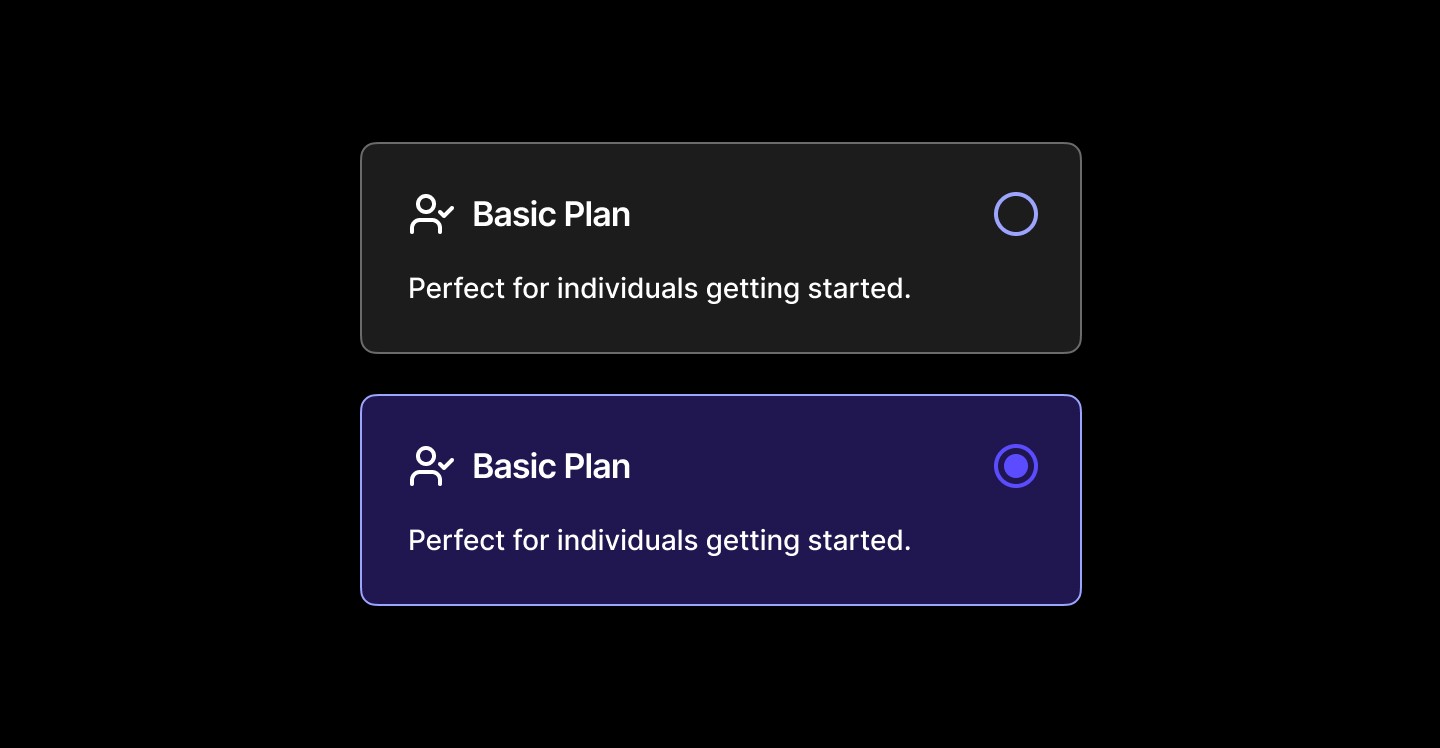
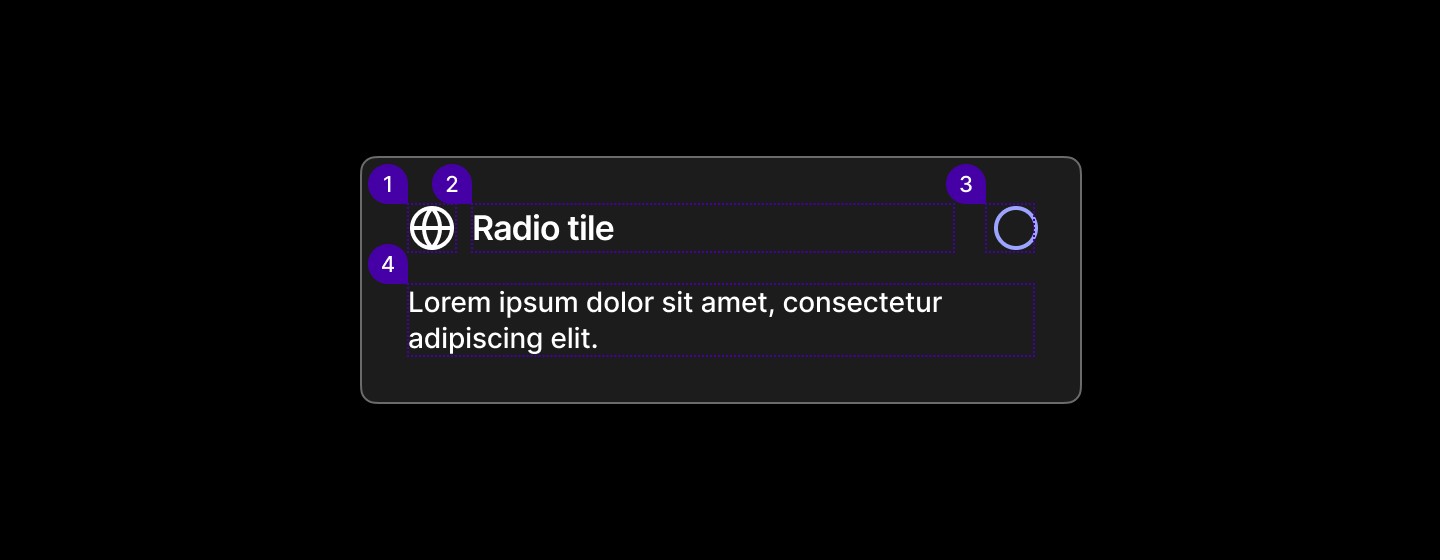
RadioTile consists of three main elements that create a comprehensive selection interface. The icon and title work together to clearly identify the option, while the description provides additional context to help users make informed decisions. The radio indicator clearly shows the current selection state.
Anatomy
Element | Description |
|---|---|
| Lucide Icon globe |
| Label text of the checkbox component |
| Radio component |
| Text |
States
RadioTile supports multiple visual states to communicate interaction possibilities: default (unselected with neutral styling), selected (highlighted with secondary background, border, and filled radio indicator), and disabled (muted appearance preventing user interaction).

Spacing
RadioTile uses structured spacing tokens to create clear content hierarchy and comfortable interaction areas. The component applies medium padding for touchable areas and small spacing between content elements.
|
|
|

Basic
Checkbox input with labels, default and active states.
When to use | When not to use |
|---|---|
✅ Use checkboxes to let users choose one or more items from a small set. | ⛔️ Avoid using checkboxes when there are more than around 8–10 options; prefer multi-selects. |
✅ Use them for consent actions such as “Accept terms” and similar acknowledgements. | ⛔️ Do not make one checkbox change another’s state, except for “select all / deselect all” control. |
✅ Use them in forms to toggle features that require an explicit submit or confirmation. | ⛔️ Avoid checkboxes when changes should apply instantly, use a switch for real-time toggles. |
Anatomy
Element | Description |
|---|---|
| Radio component |
| Label text of the radio component |
States
Spacing
Radio Group uses minimal spacing tokens for clean option layouts. The component applies small gap spacing between radio options for clear visual separation while maintaining a compact interface.
|
Design Tokens
// RadioGroup container
'web:grid gap-xs'                 // Web grid layout with spacing
accessibilityRole="radiogroup"   // Semantic role for group

// RadioGroupItem styling
'aspect-square h-5 w-5 native:h-6 native:w-6 rounded-full'
'justify-center items-center border-2 border-indigo-500'
'text-sys-body-text'              // Text color

// Focus states
'web:ring-offset-background web:focus:outline-none web:focus-visible:ring-2'
'web:focus-visible:ring-ring web:focus-visible:ring-offset-2'

// Disabled state
'web:cursor-not-allowed opacity-50' // Applied when disabled

// Radio indicator (inner dot)
'flex items-center justify-center' // Indicator container
'aspect-square h-[10px] w-[10px] native:h-[12px] native:w-[12px]'
'bg-indigo-500 rounded-full'      // Inner dot styling

// Accessibility
accessibilityRole="radio"         // Individual radio semantics
accessibilityState={{ selected, disabled }} // State communication

// Theme-aware colors (RadioTile specific)
iconColor: '#E5E7EB' // Dark mode  // text-sys-text-body equivalent
iconColor: '#1F2937' // Light mode // text-sys-text-body equivalent

// RadioTile container
'w-full p-4 rounded-md border'    // Full-width tile layout
'bg-sys-surface-neutral-0 border-sys-border-4'     // Default state
'bg-sys-surface-secondary-pressed border-sys-border-6' // Selected state

// RadioTile typography
'text-body-md font-medium text-sys-text-body' // Title styling
'text-body-base text-sys-text-body'           // Description styling

// RadioTile layout
'flex-row items-center justify-between mb-3' // Top section layout
'flex-row items-center gap-xs'               // Icon and title layout
'pl-0'                                       // Description container
RadioTile
RadioTile consists of three main elements that create a comprehensive selection interface. The icon and title work together to clearly identify the option, while the description provides additional context to help users make informed decisions. The radio indicator clearly shows the current selection state.
Anatomy
Element | Description |
|---|---|
| Lucide Icon globe |
| Label text of the checkbox component |
| Radio component |
| Text |
States
RadioTile supports multiple visual states to communicate interaction possibilities: default (unselected with neutral styling), selected (highlighted with secondary background, border, and filled radio indicator), and disabled (muted appearance preventing user interaction).
Spacing
RadioTile uses structured spacing tokens to create clear content hierarchy and comfortable interaction areas. The component applies medium padding for touchable areas and small spacing between content elements.
|
|
|
Basic
Checkbox input with labels, default and active states.
When to use | When not to use |
|---|---|
✅ Use checkboxes to let users choose one or more items from a small set. | ⛔️ Avoid using checkboxes when there are more than around 8–10 options; prefer multi-selects. |
✅ Use them for consent actions such as “Accept terms” and similar acknowledgements. | ⛔️ Do not make one checkbox change another’s state, except for “select all / deselect all” control. |
✅ Use them in forms to toggle features that require an explicit submit or confirmation. | ⛔️ Avoid checkboxes when changes should apply instantly, use a switch for real-time toggles. |
Anatomy
Element | Description |
|---|---|
| Radio component |
| Label text of the radio component |
States
Spacing
Radio Group uses minimal spacing tokens for clean option layouts. The component applies small gap spacing between radio options for clear visual separation while maintaining a compact interface.
|
Design Tokens
// RadioGroup container
'web:grid gap-xs'                 // Web grid layout with spacing
accessibilityRole="radiogroup"   // Semantic role for group

// RadioGroupItem styling
'aspect-square h-5 w-5 native:h-6 native:w-6 rounded-full'
'justify-center items-center border-2 border-indigo-500'
'text-sys-body-text'              // Text color

// Focus states
'web:ring-offset-background web:focus:outline-none web:focus-visible:ring-2'
'web:focus-visible:ring-ring web:focus-visible:ring-offset-2'

// Disabled state
'web:cursor-not-allowed opacity-50' // Applied when disabled

// Radio indicator (inner dot)
'flex items-center justify-center' // Indicator container
'aspect-square h-[10px] w-[10px] native:h-[12px] native:w-[12px]'
'bg-indigo-500 rounded-full'      // Inner dot styling

// Accessibility
accessibilityRole="radio"         // Individual radio semantics
accessibilityState={{ selected, disabled }} // State communication

// Theme-aware colors (RadioTile specific)
iconColor: '#E5E7EB' // Dark mode  // text-sys-text-body equivalent
iconColor: '#1F2937' // Light mode // text-sys-text-body equivalent

// RadioTile container
'w-full p-4 rounded-md border'    // Full-width tile layout
'bg-sys-surface-neutral-0 border-sys-border-4'     // Default state
'bg-sys-surface-secondary-pressed border-sys-border-6' // Selected state

// RadioTile typography
'text-body-md font-medium text-sys-text-body' // Title styling
'text-body-base text-sys-text-body'           // Description styling

// RadioTile layout
'flex-row items-center justify-between mb-3' // Top section layout
'flex-row items-center gap-xs'               // Icon and title layout
'pl-0'                                       // Description container
RadioTile
RadioTile consists of three main elements that create a comprehensive selection interface. The icon and title work together to clearly identify the option, while the description provides additional context to help users make informed decisions. The radio indicator clearly shows the current selection state.
Anatomy
Element | Description |
|---|---|
| Lucide Icon globe |
| Label text of the checkbox component |
| Radio component |
| Text |
States
RadioTile supports multiple visual states to communicate interaction possibilities: default (unselected with neutral styling), selected (highlighted with secondary background, border, and filled radio indicator), and disabled (muted appearance preventing user interaction).
Spacing
RadioTile uses structured spacing tokens to create clear content hierarchy and comfortable interaction areas. The component applies medium padding for touchable areas and small spacing between content elements.
|
|
|
Continue reading
Get in touch
Got a project in mind? Let’s chat. I’m always keen to hear about new ideas, collaborations, or challenges you’re looking to solve. Drop me a message and we can explore how to bring your vision to life together.
Get in touch
Got a project in mind? Let’s chat. I’m always keen to hear about new ideas, collaborations, or challenges you’re looking to solve. Drop me a message and we can explore how to bring your vision to life together.
Get in touch
Got a project in mind? Let’s chat. I’m always keen to hear about new ideas, collaborations, or challenges you’re looking to solve. Drop me a message and we can explore how to bring your vision to life together.