
Search…
Search…
Checkbox
Live in Codebase
Checkboxes let users pick one or multiple options; if only one choice is allowed, use radio buttons or a drop-down. Checkboxes usually need an explicit submit action, while switches apply changes immediately.
AA
WCAG 2.1 accessibility compliant
Checkbox
Live in Codebase
Checkboxes let users pick one or multiple options; if only one choice is allowed, use radio buttons or a drop-down. Checkboxes usually need an explicit submit action, while switches apply changes immediately.
AA
WCAG 2.1 accessibility compliant
Checkbox
Checkboxes let users pick one or multiple options; if only one choice is allowed, use radio buttons or a drop-down. Checkboxes usually need an explicit submit action, while switches apply changes immediately.
View Figma Designs

View Figma Designs
View Figma Designs
Basic
Checkbox input with labels, default and active states.

When to use | When not to use |
|---|---|
✅ Use checkboxes to let users choose one or more items from a small set. | ⛔️ Avoid using checkboxes when there are more than around 8–10 options; prefer multi-selects. |
✅ Use them for consent actions such as “Accept terms” and similar acknowledgements. | ⛔️ Do not make one checkbox change another’s state, except for “select all / deselect all” control. |
✅ Use them in forms to toggle features that require an explicit submit or confirmation. | ⛔️ Avoid checkboxes when changes should apply instantly, use a switch for real-time toggles. |
Anatomy

Element | Description |
|---|---|
| Checkbox |
| Label text of the checkbox component |
States

Spacing
Checkbox uses minimal spacing to maintain a compact form factor while ensuring adequate touch targets and label association.
|
No internal padding on checkbox element |
20px web / 24px native - Checkbox dimensions for consistent touch targets |

CheckboxTile
CheckboxTile consists of three main elements that create a comprehensive selection interface. The icon and title work together to clearly identify the option, while the description provides additional context to help users make informed decisions about their selection.

Anatomy
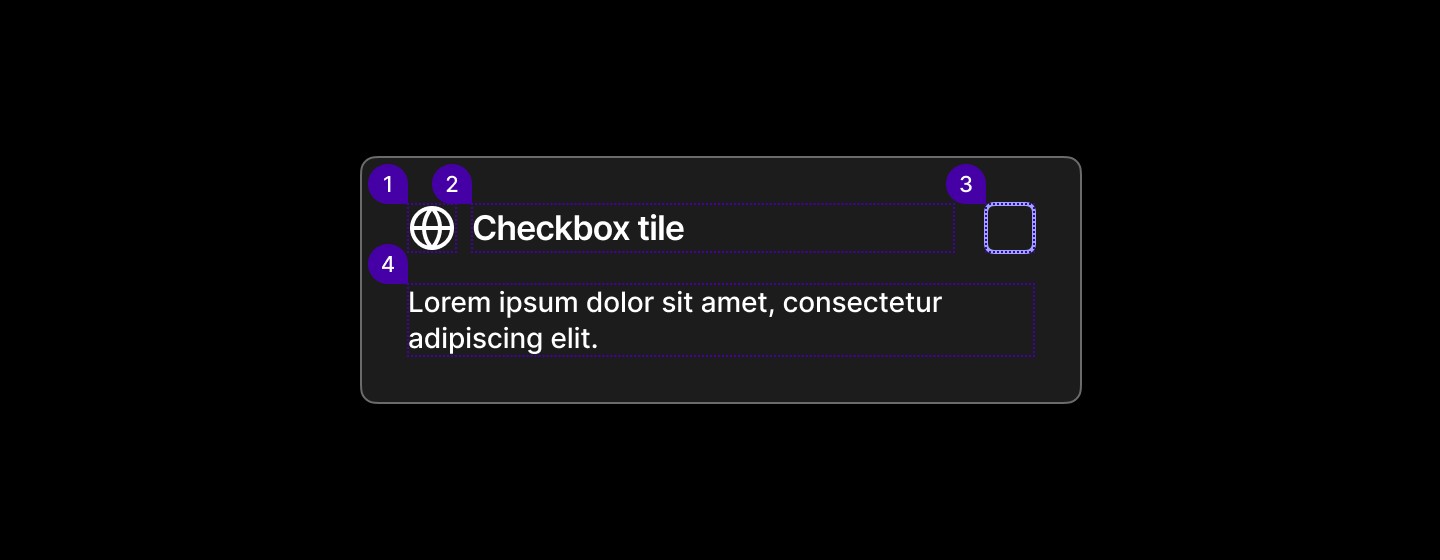
Element | Description |
|---|---|
| Lucide Icon globe |
| Label text of the checkbox component |
| Checkbox component |
| Text |
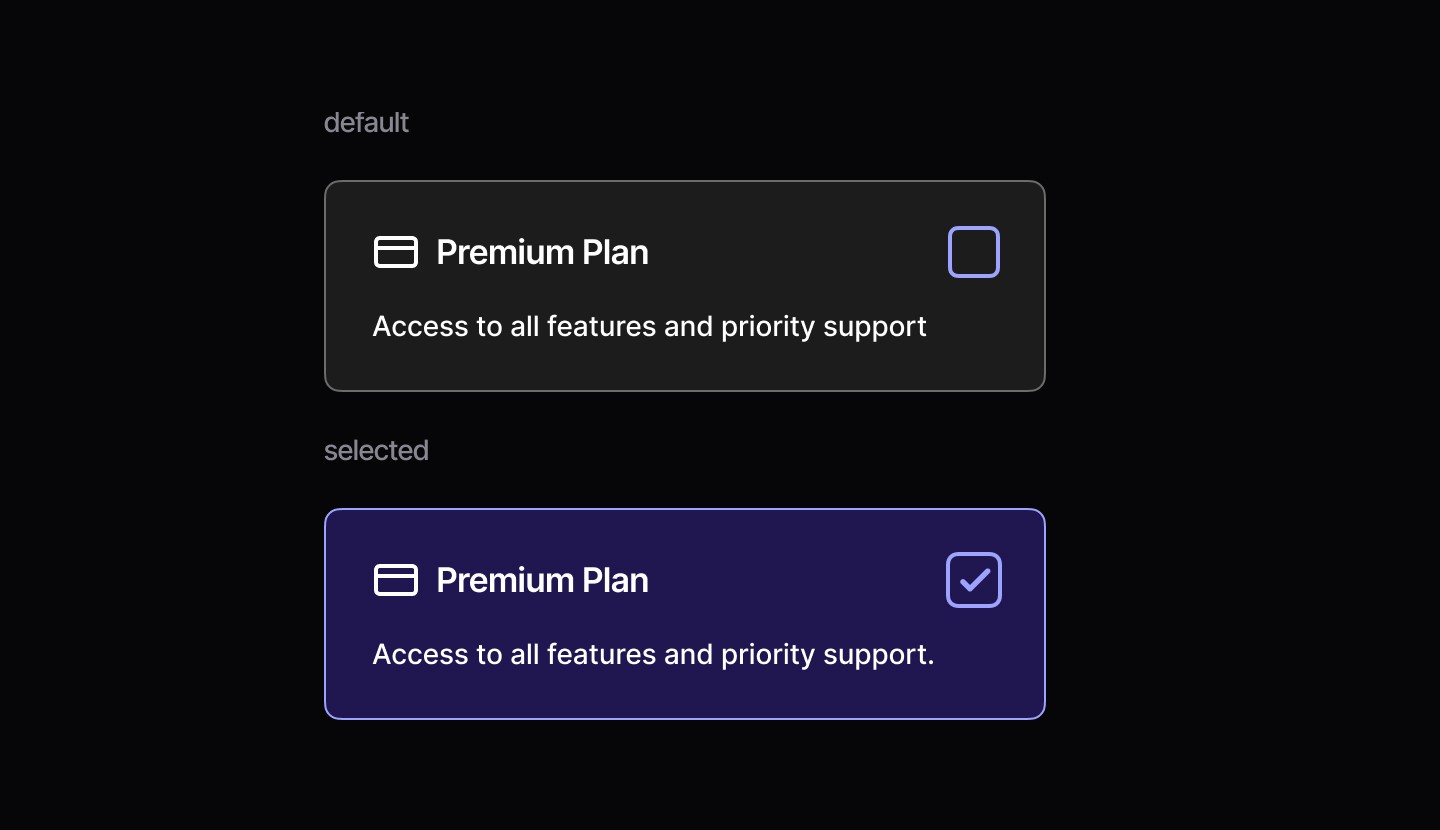
States
Spacing
CheckboxTile uses structured spacing to create clear content hierarchy and comfortable interaction areas for mobile interfaces.
|
|
|
|

Basic
Checkbox input with labels, default and active states.
When to use | When not to use |
|---|---|
✅ Use checkboxes to let users choose one or more items from a small set. | ⛔️ Avoid using checkboxes when there are more than around 8–10 options; prefer multi-selects. |
✅ Use them for consent actions such as “Accept terms” and similar acknowledgements. | ⛔️ Do not make one checkbox change another’s state, except for “select all / deselect all” control. |
✅ Use them in forms to toggle features that require an explicit submit or confirmation. | ⛔️ Avoid checkboxes when changes should apply instantly, use a switch for real-time toggles. |
Anatomy
Element | Description |
|---|---|
| Checkbox |
| Label text of the checkbox component |
States
Spacing
Checkbox uses minimal spacing to maintain a compact form factor while ensuring adequate touch targets and label association.
|
No internal padding on checkbox element |
20px web / 24px native - Checkbox dimensions for consistent touch targets |
CheckboxTile
CheckboxTile consists of three main elements that create a comprehensive selection interface. The icon and title work together to clearly identify the option, while the description provides additional context to help users make informed decisions about their selection.
Anatomy
Element | Description |
|---|---|
| Lucide Icon globe |
| Label text of the checkbox component |
| Checkbox component |
| Text |
States
Spacing
CheckboxTile uses structured spacing to create clear content hierarchy and comfortable interaction areas for mobile interfaces.
|
|
|
|
Basic
Checkbox input with labels, default and active states.
When to use | When not to use |
|---|---|
✅ Use checkboxes to let users choose one or more items from a small set. | ⛔️ Avoid using checkboxes when there are more than around 8–10 options; prefer multi-selects. |
✅ Use them for consent actions such as “Accept terms” and similar acknowledgements. | ⛔️ Do not make one checkbox change another’s state, except for “select all / deselect all” control. |
✅ Use them in forms to toggle features that require an explicit submit or confirmation. | ⛔️ Avoid checkboxes when changes should apply instantly, use a switch for real-time toggles. |
Anatomy
Element | Description |
|---|---|
| Checkbox |
| Label text of the checkbox component |
States
Spacing
Checkbox uses minimal spacing to maintain a compact form factor while ensuring adequate touch targets and label association.
|
No internal padding on checkbox element |
20px web / 24px native - Checkbox dimensions for consistent touch targets |
CheckboxTile
CheckboxTile consists of three main elements that create a comprehensive selection interface. The icon and title work together to clearly identify the option, while the description provides additional context to help users make informed decisions about their selection.
Anatomy
Element | Description |
|---|---|
| Lucide Icon globe |
| Label text of the checkbox component |
| Checkbox component |
| Text |
States
Spacing
CheckboxTile uses structured spacing to create clear content hierarchy and comfortable interaction areas for mobile interfaces.
|
|
|
|
Continue reading
Get in touch
Got a project in mind? Let’s chat. I’m always keen to hear about new ideas, collaborations, or challenges you’re looking to solve. Drop me a message and we can explore how to bring your vision to life together.
Get in touch
Got a project in mind? Let’s chat. I’m always keen to hear about new ideas, collaborations, or challenges you’re looking to solve. Drop me a message and we can explore how to bring your vision to life together.
Get in touch
Got a project in mind? Let’s chat. I’m always keen to hear about new ideas, collaborations, or challenges you’re looking to solve. Drop me a message and we can explore how to bring your vision to life together.