
Search…
Search…
Calendar
Live in Codebase
The calendar component lets users select a date and includes built-in options to define minimum and maximum selectable dates.
AA
WCAG 2.1 accessibility compliant
Calendar
Live in Codebase
The calendar component lets users select a date and includes built-in options to define minimum and maximum selectable dates.
AA
WCAG 2.1 accessibility compliant
Calendar
The calendar component lets users select a date and includes built-in options to define minimum and maximum selectable dates.
Figma Designs

Figma Designs
Figma Designs

When to use | When not to use |
|---|---|
✅ Use when users need to select a single date or a date range. | ⛔️ Don’t use for entering a date of birth, use an Input component instead. |
✅ Automatically close the calendar after one date is chosen, unless selecting a range. | ⛔️ Avoid using for dates more than 10 years in the past or future. |
Anatomy
The Calendar component is composed of several key elements arranged in a structured layout:
Calendar Container – The main wrapper that defines boundaries with background, border, and padding.
Header Section – Displays the month and year, centered between left and right navigation chevrons.
Day Headers Row – Shows abbreviated day names (Su, Mo, Tu, We, Th, Fr, Sa) labeling each column.
Calendar Grid – A 6×7 grid of date cells displaying the current month along with adjacent dates for context.
Date Cells – Interactive areas representing each date, with visual states for selected, today, disabled, and default.
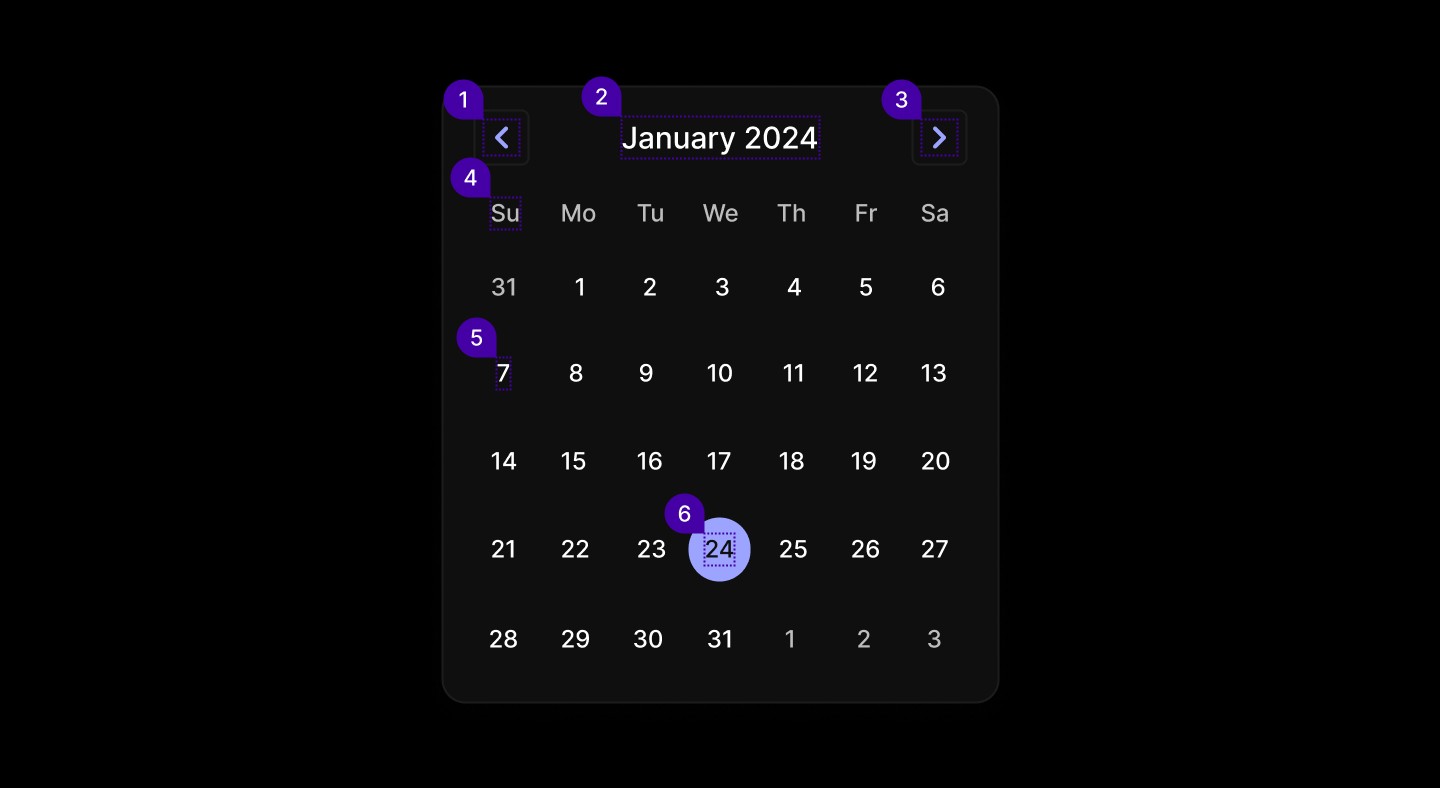
Element | Description |
|---|---|
| Button, Lucide Icon chevron left |
| Text |
| Button, Lucide Icon chevron right |
| Text |
| Text |
| Text |
Spacing
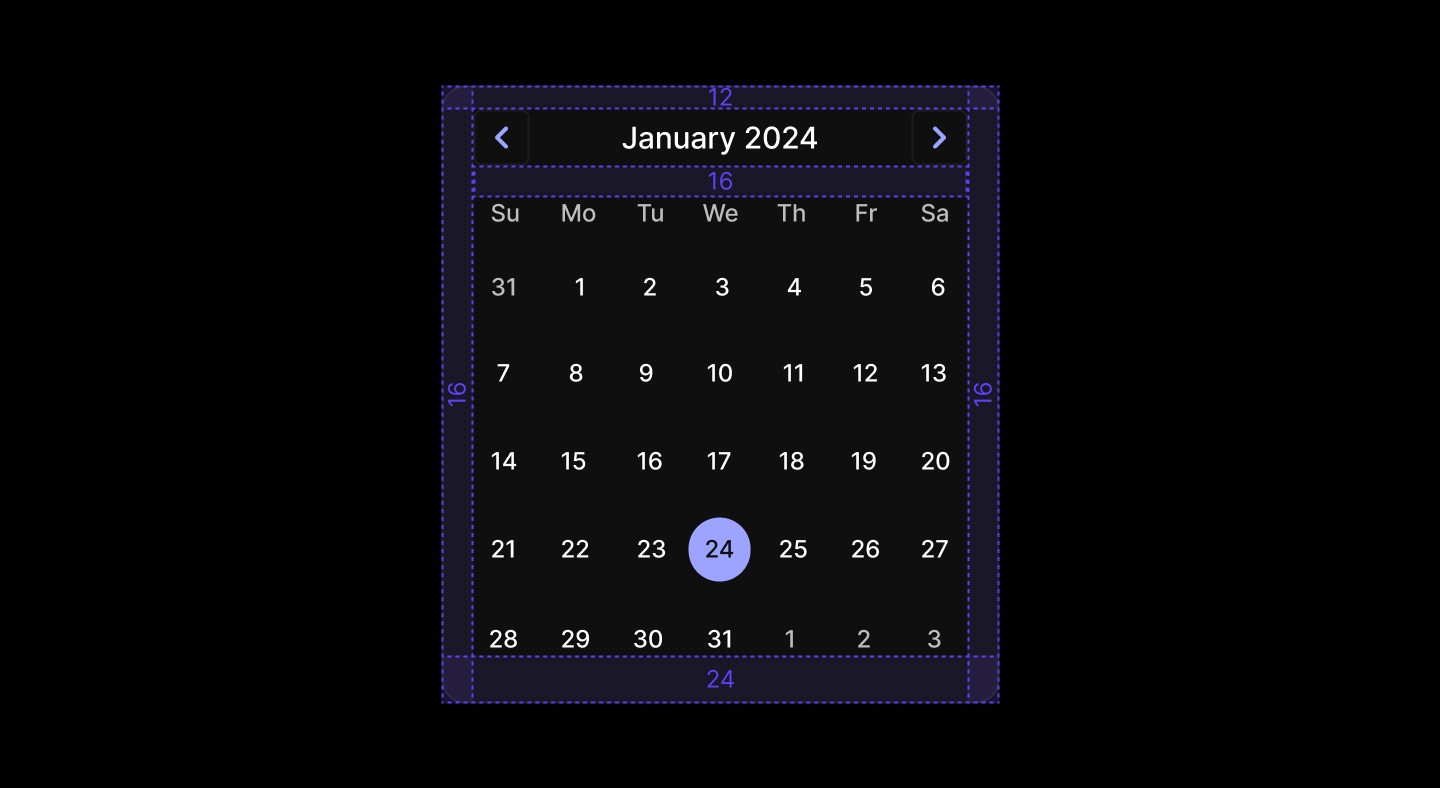
Calendar uses semantic spacing tokens for consistent layout
Internal Spacing
Default size: |
Small size: |
Calendar grid: |
Calendar days: |
Day cells: min-w-[32px] min-h-[32px] with |
When to use | When not to use |
|---|---|
✅ Use when users need to select a single date or a date range. | ⛔️ Don’t use for entering a date of birth, use an Input component instead. |
✅ Automatically close the calendar after one date is chosen, unless selecting a range. | ⛔️ Avoid using for dates more than 10 years in the past or future. |
Anatomy
The Calendar component is composed of several key elements arranged in a structured layout:
Calendar Container – The main wrapper that defines boundaries with background, border, and padding.
Header Section – Displays the month and year, centered between left and right navigation chevrons.
Day Headers Row – Shows abbreviated day names (Su, Mo, Tu, We, Th, Fr, Sa) labeling each column.
Calendar Grid – A 6×7 grid of date cells displaying the current month along with adjacent dates for context.
Date Cells – Interactive areas representing each date, with visual states for selected, today, disabled, and default.
Element | Description |
|---|---|
| Button, Lucide Icon chevron left |
| Text |
| Button, Lucide Icon chevron right |
| Text |
| Text |
| Text |
Spacing
Calendar uses semantic spacing tokens for consistent layout
Internal Spacing
Default size: |
Small size: |
Calendar grid: |
Calendar days: |
Day cells: min-w-[32px] min-h-[32px] with |
When to use | When not to use |
|---|---|
✅ Use when users need to select a single date or a date range. | ⛔️ Don’t use for entering a date of birth, use an Input component instead. |
✅ Automatically close the calendar after one date is chosen, unless selecting a range. | ⛔️ Avoid using for dates more than 10 years in the past or future. |
Anatomy
The Calendar component is composed of several key elements arranged in a structured layout:
Calendar Container – The main wrapper that defines boundaries with background, border, and padding.
Header Section – Displays the month and year, centered between left and right navigation chevrons.
Day Headers Row – Shows abbreviated day names (Su, Mo, Tu, We, Th, Fr, Sa) labeling each column.
Calendar Grid – A 6×7 grid of date cells displaying the current month along with adjacent dates for context.
Date Cells – Interactive areas representing each date, with visual states for selected, today, disabled, and default.
Element | Description |
|---|---|
| Button, Lucide Icon chevron left |
| Text |
| Button, Lucide Icon chevron right |
| Text |
| Text |
| Text |
Spacing
Calendar uses semantic spacing tokens for consistent layout
Internal Spacing
Default size: |
Small size: |
Calendar grid: |
Calendar days: |
Day cells: min-w-[32px] min-h-[32px] with |
Continue reading
Get in touch
Got a project in mind? Let’s chat. I’m always keen to hear about new ideas, collaborations, or challenges you’re looking to solve. Drop me a message and we can explore how to bring your vision to life together.
Get in touch
Got a project in mind? Let’s chat. I’m always keen to hear about new ideas, collaborations, or challenges you’re looking to solve. Drop me a message and we can explore how to bring your vision to life together.
Get in touch
Got a project in mind? Let’s chat. I’m always keen to hear about new ideas, collaborations, or challenges you’re looking to solve. Drop me a message and we can explore how to bring your vision to life together.