Search…
Search…
Button
Live in Codebase
Buttons guide users toward action by signalling priority through a clear hierarchy of styles primary, secondary, and tertiary ensuring the most important actions stand out while supporting alternatives remain visible but unobtrusive.
AA
WCAG 2.1 accessibility compliant
Button
Live in Codebase
Buttons guide users toward action by signalling priority through a clear hierarchy of styles primary, secondary, and tertiary ensuring the most important actions stand out while supporting alternatives remain visible but unobtrusive.
AA
WCAG 2.1 accessibility compliant
Button
Buttons guide users toward action by signalling priority through a clear hierarchy of styles primary, secondary, and tertiary ensuring the most important actions stand out while supporting alternatives remain visible but unobtrusive.
View Figma Designs

View Figma Designs
View Figma Designs

When to use | When not to use |
|---|---|
✅ Primary actions | ⛔️ For navigation |
✅ Secondary actions | ⛔️ When there’s no clear action |
✅ Tertiary actions | ⛔️ Too many buttons at once. |
Anatomy
Breaks down the structural elements of a button, including the label (main text) and right icon (optional). Understanding these parts ensures consistency and clarity when building button variants.

Element | Description |
|---|---|
| Label text of the button component |
| Right Icon of the button component |
Sizes
Covers three sizes: small, medium, and large. Each scales proportionally for different contexts, small for compact areas, medium for standard use, and large for primary actions or touch-friendly layouts.

Spacing
Button uses consistent t-shirt sizing tokens for horizontal padding and fixed heights that match the Figma master component specifications. The component applies responsive horizontal padding with xs token spacing between icons and text when both are present.

SM (32px total height)
Padding | Token | Size |
|---|---|---|
Horizontal |
| 12px |
Vertical |
| 4px |
MD (40px total height_
Padding | Token | Size |
|---|---|---|
Horizontal |
| 12px |
Vertical |
| 8px |
XL (56px total height)
Padding | Token | Size |
|---|---|---|
Horizontal |
| 24px |
Vertical |
| 16px |
Variants
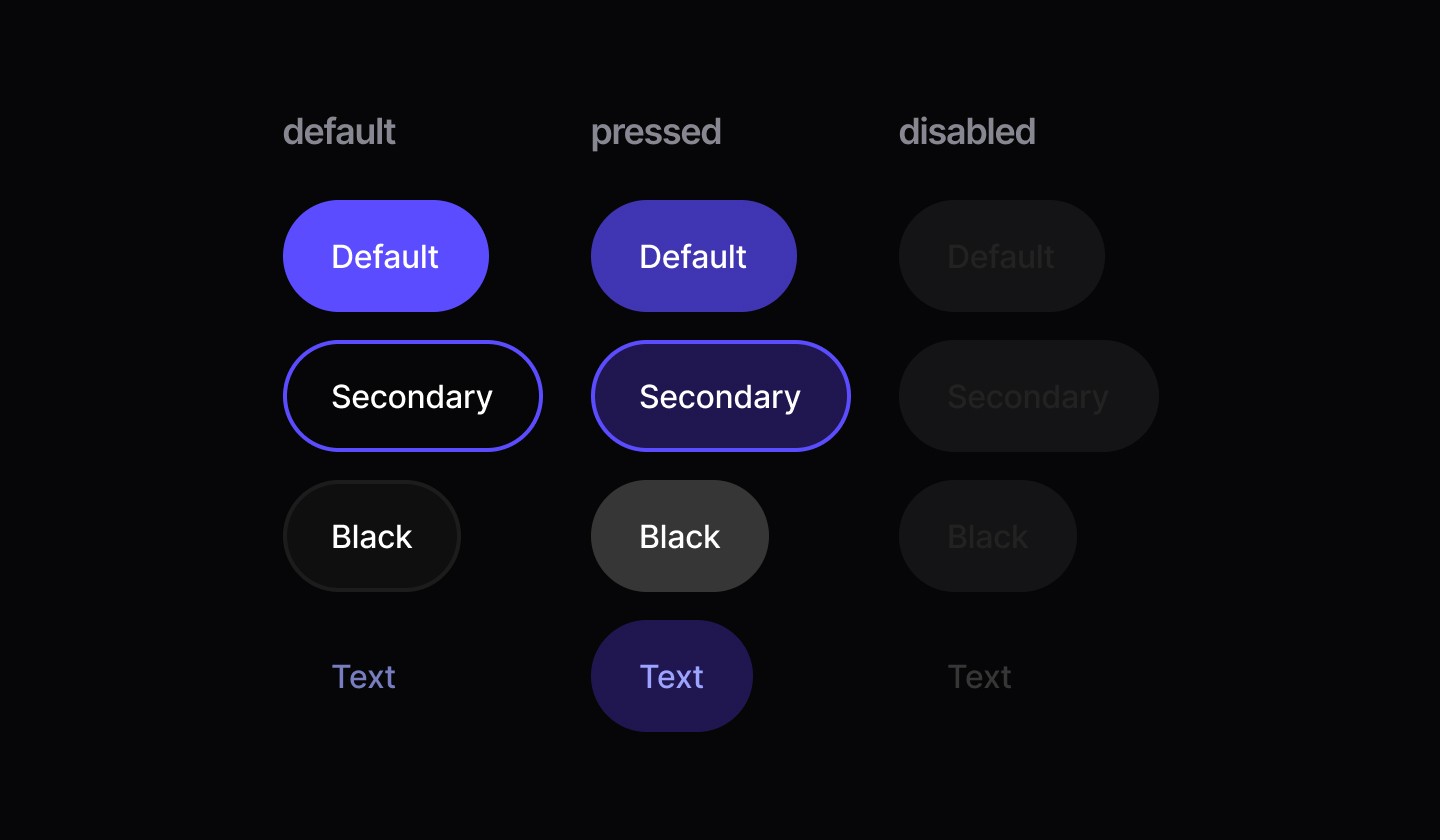
Outlines the four core styles: default, secondary, black, and text. Each communicates different levels of emphasis, helping designers match visual weight to action importance.

States
Shows how buttons appear in default, pressed, and disabled states. These variations provide user feedback and make availability clear during interactions.
Icon & Icon Right
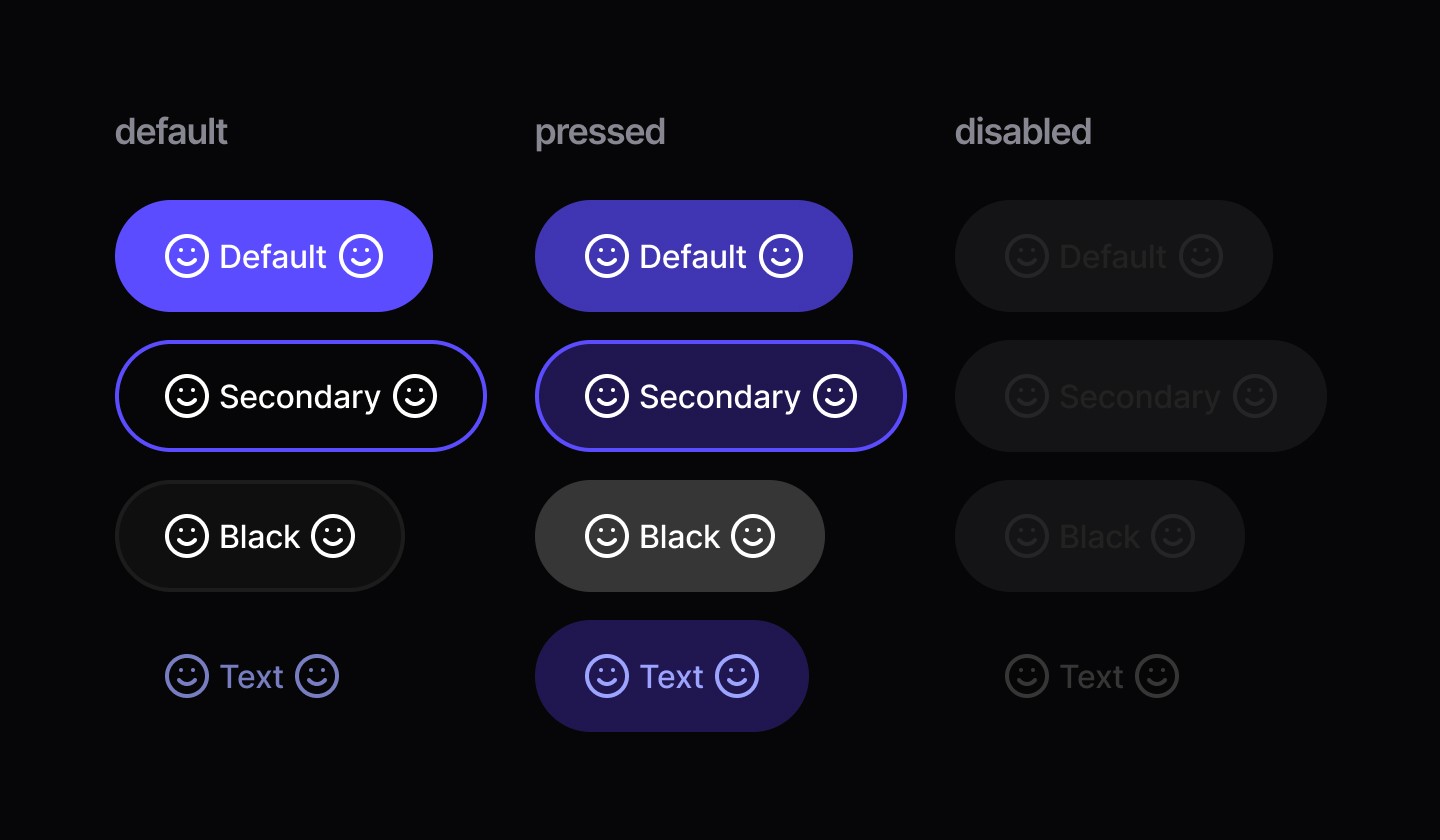
Demonstrates leading and trailing icon use across variants. Icons support meaning and recognition, with left icons suggesting action type and right icons often signalling direction or options.
When to use | When not to use |
|---|---|
✅ Primary actions | ⛔️ For navigation |
✅ Secondary actions | ⛔️ When there’s no clear action |
✅ Tertiary actions | ⛔️ Too many buttons at once. |
Anatomy
Breaks down the structural elements of a button, including the label (main text) and right icon (optional). Understanding these parts ensures consistency and clarity when building button variants.
Element | Description |
|---|---|
| Label text of the button component |
| Right Icon of the button component |
Sizes
Covers three sizes: small, medium, and large. Each scales proportionally for different contexts, small for compact areas, medium for standard use, and large for primary actions or touch-friendly layouts.
Spacing
Button uses consistent t-shirt sizing tokens for horizontal padding and fixed heights that match the Figma master component specifications. The component applies responsive horizontal padding with xs token spacing between icons and text when both are present.
SM (32px total height)
Padding | Token | Size |
|---|---|---|
Horizontal |
| 12px |
Vertical |
| 4px |
MD (40px total height_
Padding | Token | Size |
|---|---|---|
Horizontal |
| 12px |
Vertical |
| 8px |
XL (56px total height)
Padding | Token | Size |
|---|---|---|
Horizontal |
| 24px |
Vertical |
| 16px |
Variants
Outlines the four core styles: default, secondary, black, and text. Each communicates different levels of emphasis, helping designers match visual weight to action importance.
States
Shows how buttons appear in default, pressed, and disabled states. These variations provide user feedback and make availability clear during interactions.
Icon & Icon Right
Demonstrates leading and trailing icon use across variants. Icons support meaning and recognition, with left icons suggesting action type and right icons often signalling direction or options.
When to use | When not to use |
|---|---|
✅ Primary actions | ⛔️ For navigation |
✅ Secondary actions | ⛔️ When there’s no clear action |
✅ Tertiary actions | ⛔️ Too many buttons at once. |
Anatomy
Breaks down the structural elements of a button, including the label (main text) and right icon (optional). Understanding these parts ensures consistency and clarity when building button variants.
Element | Description |
|---|---|
| Label text of the button component |
| Right Icon of the button component |
Sizes
Covers three sizes: small, medium, and large. Each scales proportionally for different contexts, small for compact areas, medium for standard use, and large for primary actions or touch-friendly layouts.
Spacing
Button uses consistent t-shirt sizing tokens for horizontal padding and fixed heights that match the Figma master component specifications. The component applies responsive horizontal padding with xs token spacing between icons and text when both are present.
SM (32px total height)
Padding | Token | Size |
|---|---|---|
Horizontal |
| 12px |
Vertical |
| 4px |
MD (40px total height_
Padding | Token | Size |
|---|---|---|
Horizontal |
| 12px |
Vertical |
| 8px |
XL (56px total height)
Padding | Token | Size |
|---|---|---|
Horizontal |
| 24px |
Vertical |
| 16px |
Variants
Outlines the four core styles: default, secondary, black, and text. Each communicates different levels of emphasis, helping designers match visual weight to action importance.
States
Shows how buttons appear in default, pressed, and disabled states. These variations provide user feedback and make availability clear during interactions.
Icon & Icon Right
Demonstrates leading and trailing icon use across variants. Icons support meaning and recognition, with left icons suggesting action type and right icons often signalling direction or options.
Continue reading
Get in touch
Got a project in mind? Let’s chat. I’m always keen to hear about new ideas, collaborations, or challenges you’re looking to solve. Drop me a message and we can explore how to bring your vision to life together.
Get in touch
Got a project in mind? Let’s chat. I’m always keen to hear about new ideas, collaborations, or challenges you’re looking to solve. Drop me a message and we can explore how to bring your vision to life together.
Get in touch
Got a project in mind? Let’s chat. I’m always keen to hear about new ideas, collaborations, or challenges you’re looking to solve. Drop me a message and we can explore how to bring your vision to life together.