
Search…
Search…
Text Input
Live in Codebase
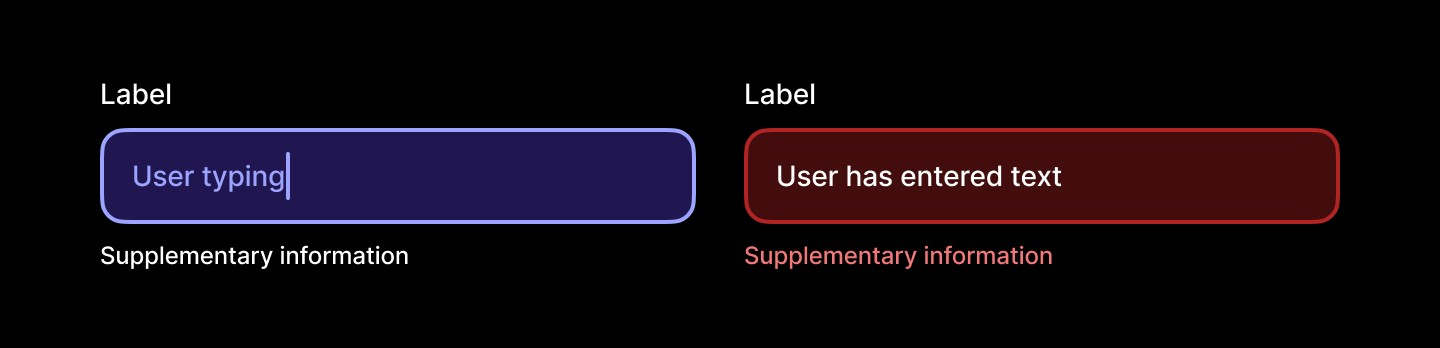
Text inputs allow people to enter and edit freeform information, such as names, email addresses or search queries. They should be clearly labelled, provide helpful placeholders or hints where needed.
AA
WCAG 2.1 accessibility compliant
Text Input
Live in Codebase
Text inputs allow people to enter and edit freeform information, such as names, email addresses or search queries. They should be clearly labelled, provide helpful placeholders or hints where needed.
AA
WCAG 2.1 accessibility compliant
Text Input
Text inputs allow people to enter and edit freeform information, such as names, email addresses or search queries. They should be clearly labelled, provide helpful placeholders or hints where needed.
Figma Designs

Figma Designs
Figma Designs
When to use | When not to use |
|---|---|
✅ Use for short text input fields | ⛔️ Use for long-form text |
✅ Provide help text and placeholder text for non-critical guidance | ⛔️ Rely on placeholder text for required information, use hint text for that purpose |
✅Validate input once the user has finished interacting, not before |
Anatomy
The input component consists of three key elements that work together to provide clear form interaction. The label identifies the expected input type, while the input field itself contains placeholder text or user-entered values. The supplementary information area provides additional context, validation feedback, or helpful instructions below the input.
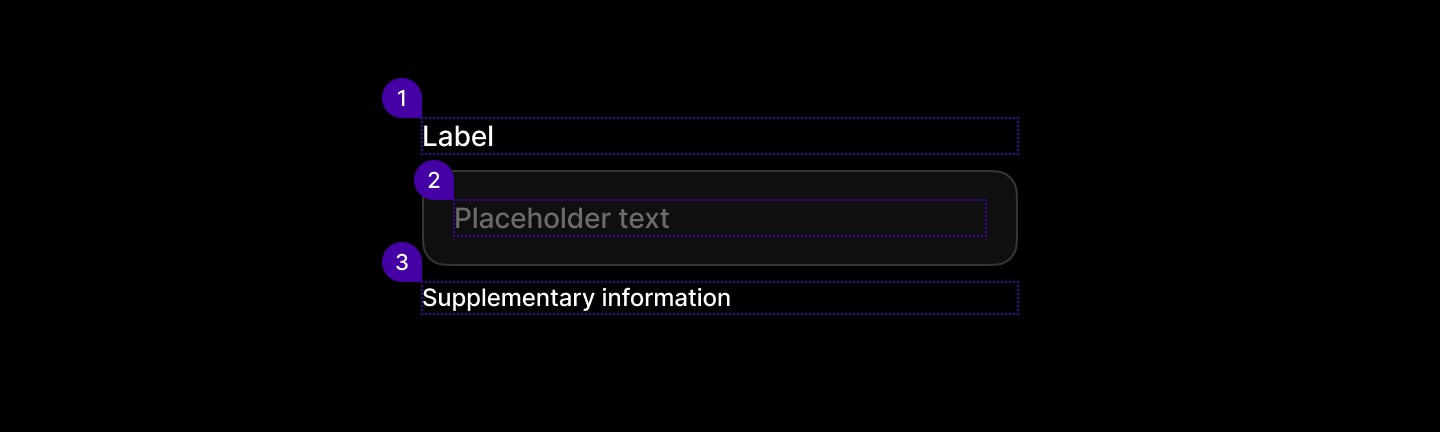
Element | Description |
|---|---|
| Text Input label |
| Text Input status message |
| Text Input value |
Spacing
Input uses consistent padding tokens for comfortable text entry with minimal spacing between error messages and the input field.
|
|
|
Native height: 48px, Web height: 40px - Platform-specific height optimization |

States
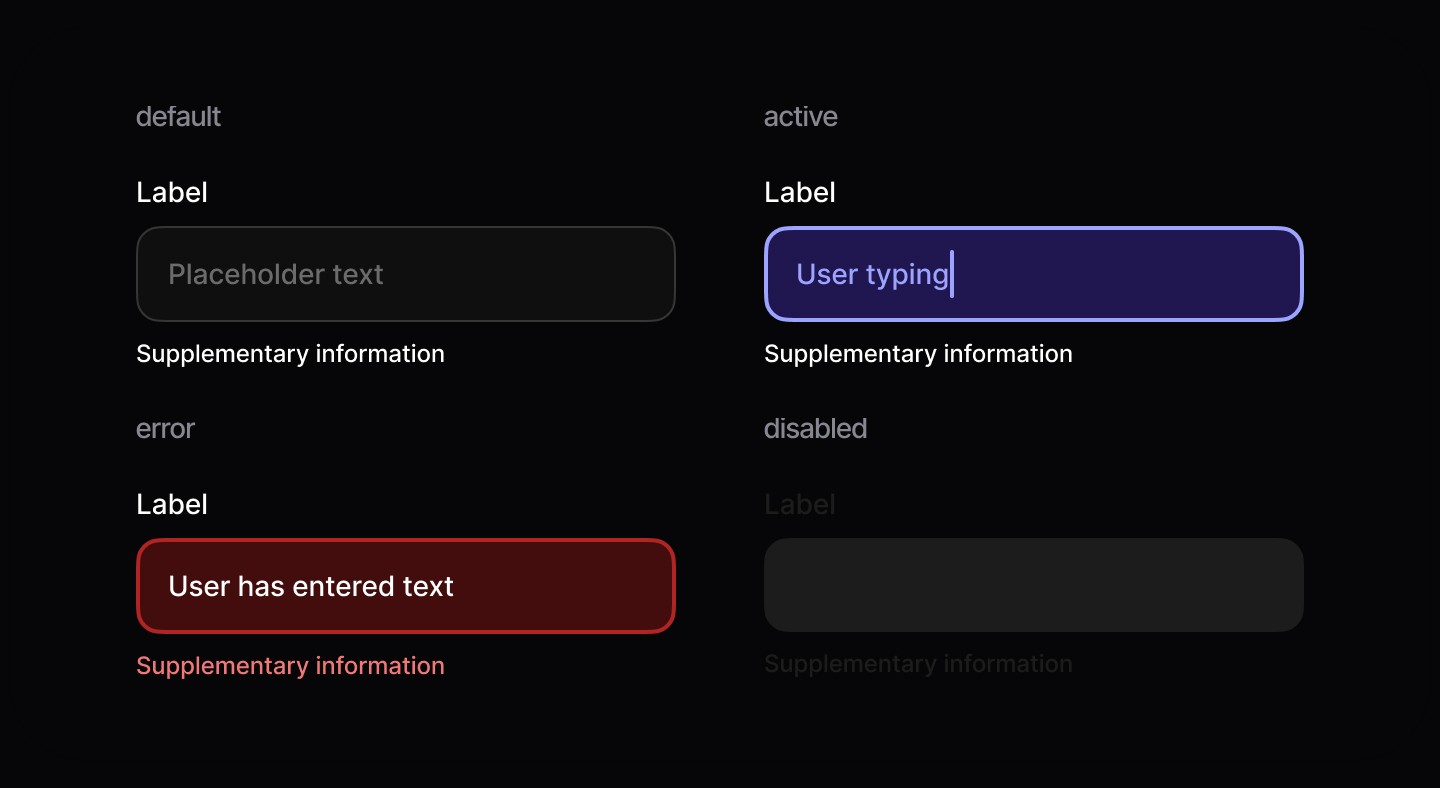
Input fields have four distinct states to guide user interaction: default (neutral styling ready for input), active (focused with enhanced border styling during interaction), error (red styling with validation feedback), and disabled (muted appearance preventing any user interaction).
When to use | When not to use |
|---|---|
✅ Use for short text input fields | ⛔️ Use for long-form text |
✅ Provide help text and placeholder text for non-critical guidance | ⛔️ Rely on placeholder text for required information, use hint text for that purpose |
✅Validate input once the user has finished interacting, not before |
Anatomy
The input component consists of three key elements that work together to provide clear form interaction. The label identifies the expected input type, while the input field itself contains placeholder text or user-entered values. The supplementary information area provides additional context, validation feedback, or helpful instructions below the input.
Element | Description |
|---|---|
| Text Input label |
| Text Input status message |
| Text Input value |
Spacing
Input uses consistent padding tokens for comfortable text entry with minimal spacing between error messages and the input field.
|
|
|
Native height: 48px, Web height: 40px - Platform-specific height optimization |
States
Input fields have four distinct states to guide user interaction: default (neutral styling ready for input), active (focused with enhanced border styling during interaction), error (red styling with validation feedback), and disabled (muted appearance preventing any user interaction).
When to use | When not to use |
|---|---|
✅ Use for short text input fields | ⛔️ Use for long-form text |
✅ Provide help text and placeholder text for non-critical guidance | ⛔️ Rely on placeholder text for required information, use hint text for that purpose |
✅Validate input once the user has finished interacting, not before |
Anatomy
The input component consists of three key elements that work together to provide clear form interaction. The label identifies the expected input type, while the input field itself contains placeholder text or user-entered values. The supplementary information area provides additional context, validation feedback, or helpful instructions below the input.
Element | Description |
|---|---|
| Text Input label |
| Text Input status message |
| Text Input value |
Spacing
Input uses consistent padding tokens for comfortable text entry with minimal spacing between error messages and the input field.
|
|
|
Native height: 48px, Web height: 40px - Platform-specific height optimization |
States
Input fields have four distinct states to guide user interaction: default (neutral styling ready for input), active (focused with enhanced border styling during interaction), error (red styling with validation feedback), and disabled (muted appearance preventing any user interaction).
Continue reading
Get in touch
Got a project in mind? Let’s chat. I’m always keen to hear about new ideas, collaborations, or challenges you’re looking to solve. Drop me a message and we can explore how to bring your vision to life together.
Get in touch
Got a project in mind? Let’s chat. I’m always keen to hear about new ideas, collaborations, or challenges you’re looking to solve. Drop me a message and we can explore how to bring your vision to life together.
Get in touch
Got a project in mind? Let’s chat. I’m always keen to hear about new ideas, collaborations, or challenges you’re looking to solve. Drop me a message and we can explore how to bring your vision to life together.