Search…
Search…
Tooltip
Live in Codebase
Tooltips provide contextual hints on hover, offering guidance and clarifying features without cluttering the interface.
AA
WCAG 2.1 accessibility compliant
Tooltip
Live in Codebase
Tooltips provide contextual hints on hover, offering guidance and clarifying features without cluttering the interface.
AA
WCAG 2.1 accessibility compliant
Tooltip
Tooltips provide contextual hints on hover, offering guidance and clarifying features without cluttering the interface.
View Figma Designs

View Figma Designs
View Figma Designs
When to use | When not to use |
|---|---|
✅ Use tooltips to clarify interactive elements that need extra context. | ⛔️ Avoid placing interactive elements (links, buttons) inside a tooltip. |
✅ Provide supplementary details like keyboard shortcuts. | ⛔️ Don’t use tooltips when there’s enough space to explain content directly. |
✅ Keep language clear, accurate, and concise. | ⛔️ Don’t rely on tooltips for critical or essential information. |
Anatomy
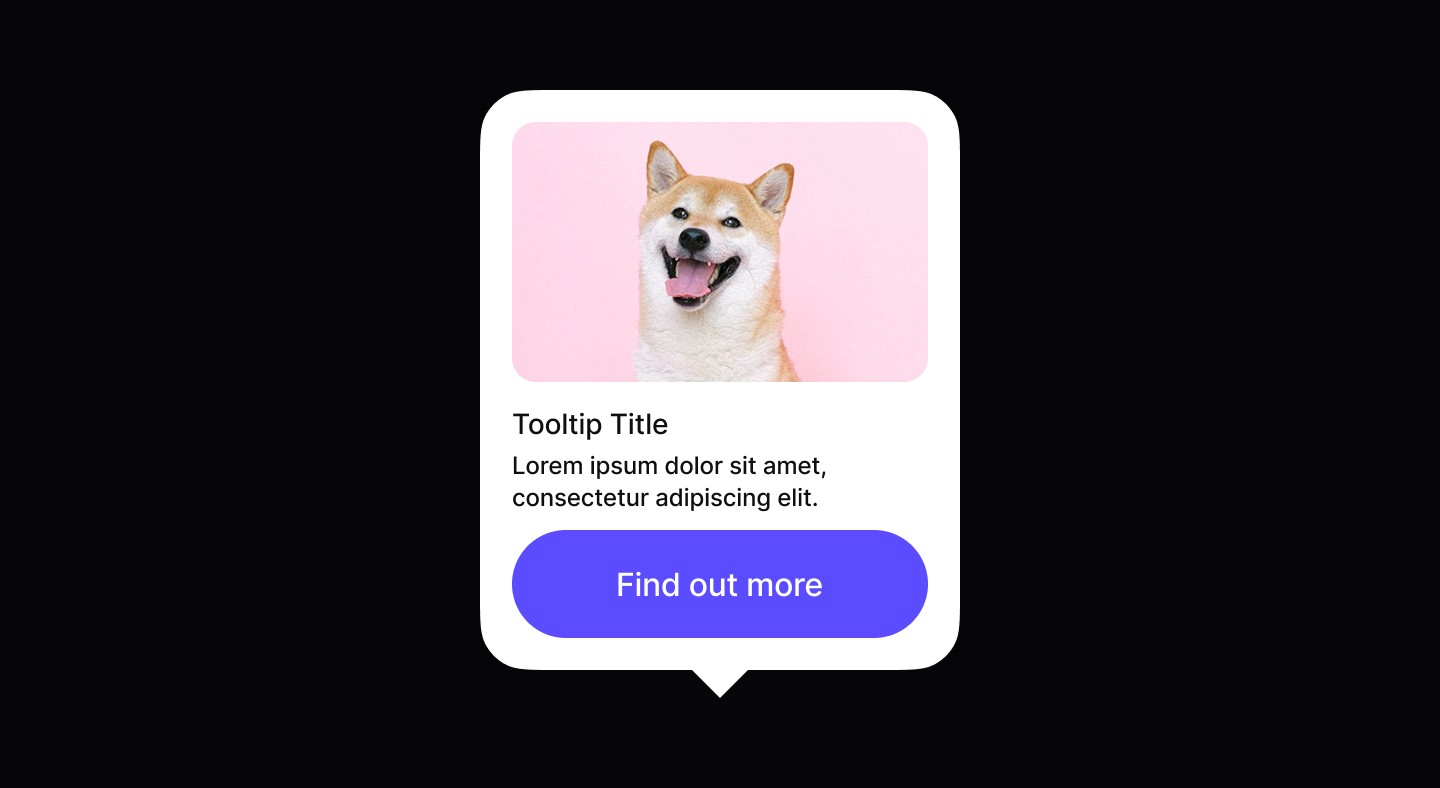
The tooltip component consists of four key elements that form an informative overlay. An optional image provides visual context, followed by a clear title and descriptive text. A primary button enables direct user action, creating a logical flow from visual to textual to interactive elements.

Element | Description |
|---|---|
| Tooltip Image (Optional) |
| Title text of the tooltip component |
| Text |
| Primary Button |
Variants
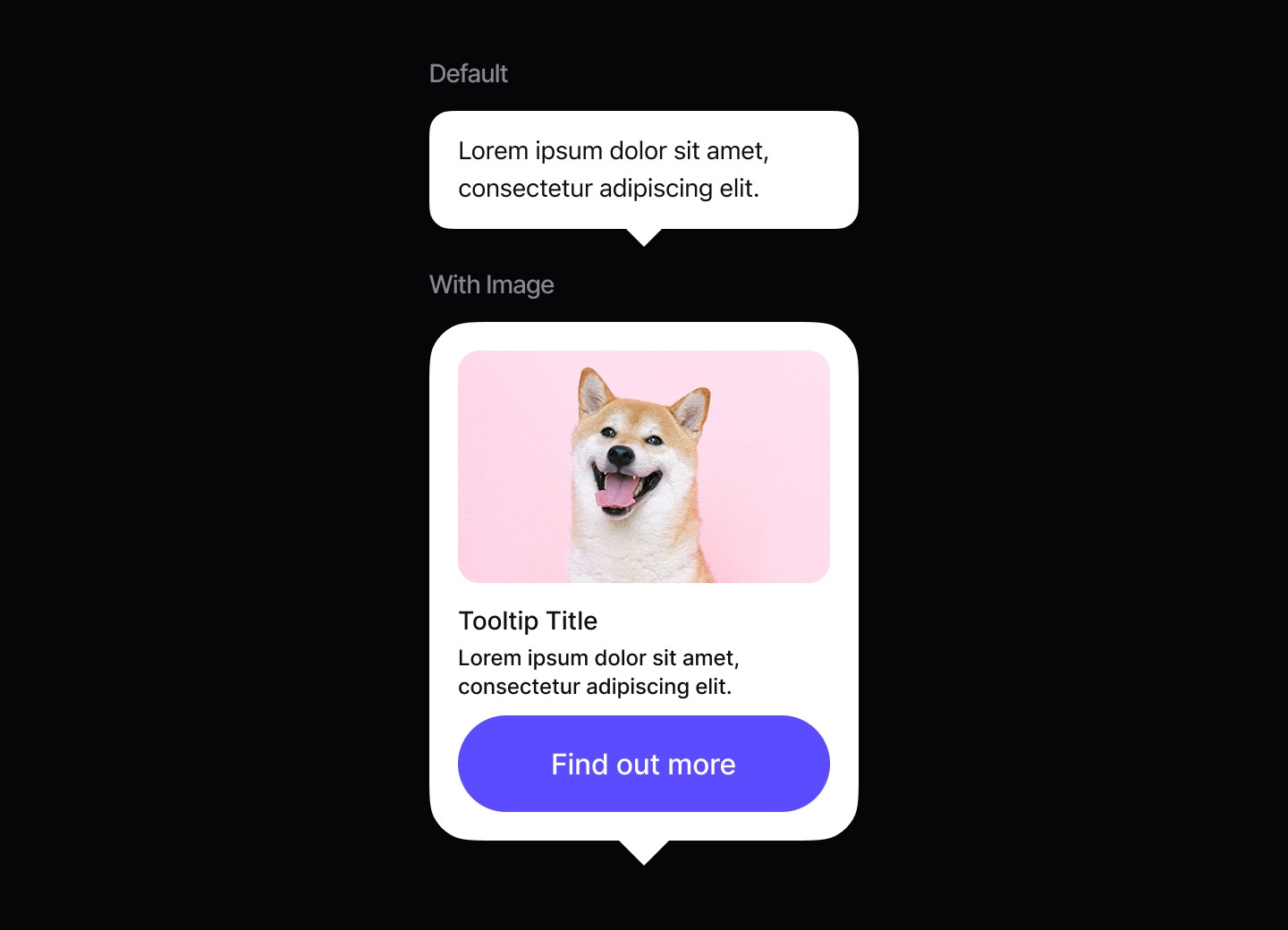
Tooltips come in two variants to suit different content needs:
Default: A clean, text-only layout for simple explanatory content.
With Image: Adds visual context for feature previews or complex concepts that benefit from accompanying imagery.
Spacing
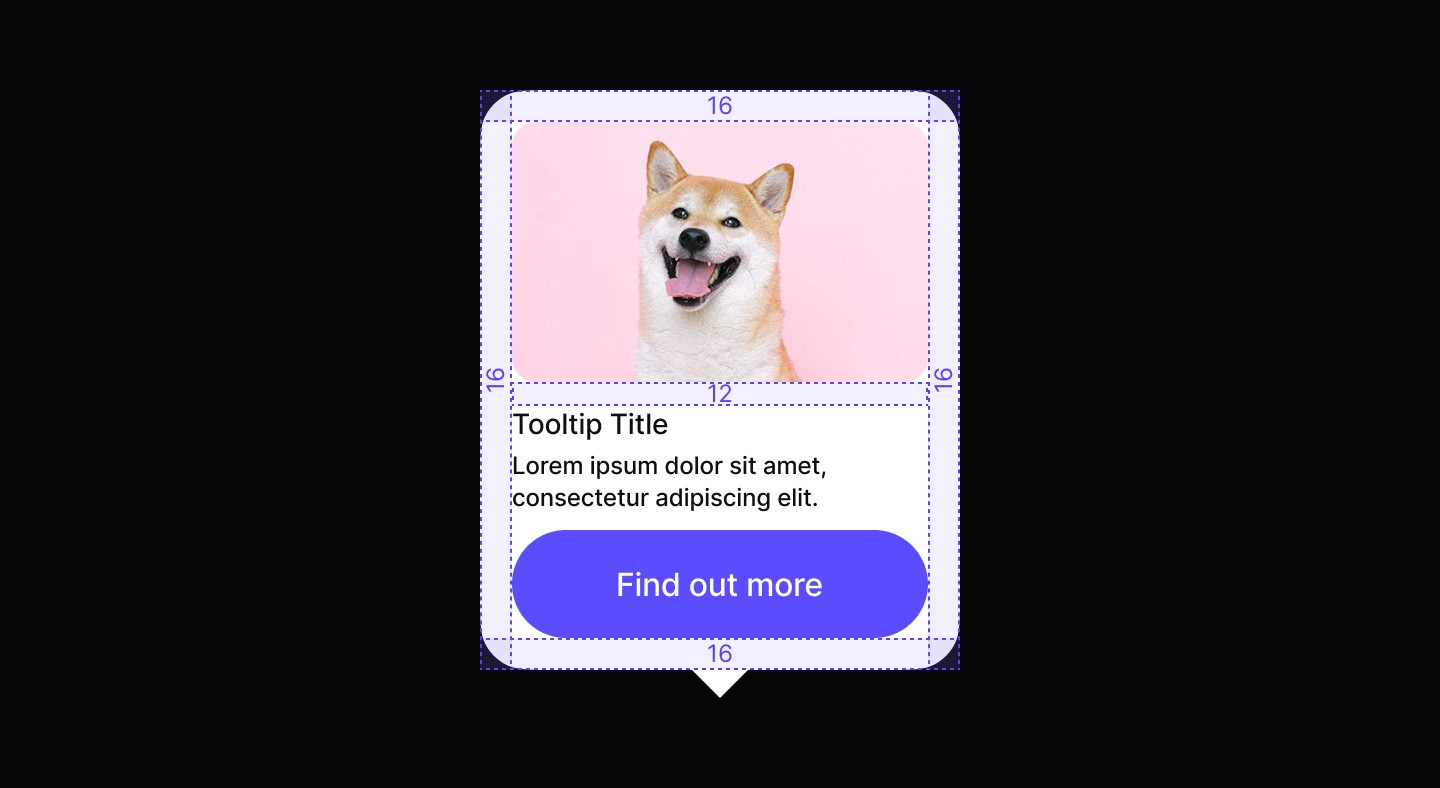
Consistent spacing keeps tooltips readable and visually balanced. Internal padding and margins establish hierarchy while maintaining a compact layout. This systematic spacing prevents crowding and ensures smooth integration with surrounding interface elements.
When to use | When not to use |
|---|---|
✅ Use tooltips to clarify interactive elements that need extra context. | ⛔️ Avoid placing interactive elements (links, buttons) inside a tooltip. |
✅ Provide supplementary details like keyboard shortcuts. | ⛔️ Don’t use tooltips when there’s enough space to explain content directly. |
✅ Keep language clear, accurate, and concise. | ⛔️ Don’t rely on tooltips for critical or essential information. |
Anatomy
The tooltip component consists of four key elements that form an informative overlay. An optional image provides visual context, followed by a clear title and descriptive text. A primary button enables direct user action, creating a logical flow from visual to textual to interactive elements.
Element | Description |
|---|---|
| Tooltip Image (Optional) |
| Title text of the tooltip component |
| Text |
| Primary Button |
Variants
Tooltips come in two variants to suit different content needs:
Default: A clean, text-only layout for simple explanatory content.
With Image: Adds visual context for feature previews or complex concepts that benefit from accompanying imagery.
Spacing
Consistent spacing keeps tooltips readable and visually balanced. Internal padding and margins establish hierarchy while maintaining a compact layout. This systematic spacing prevents crowding and ensures smooth integration with surrounding interface elements.
When to use | When not to use |
|---|---|
✅ Use tooltips to clarify interactive elements that need extra context. | ⛔️ Avoid placing interactive elements (links, buttons) inside a tooltip. |
✅ Provide supplementary details like keyboard shortcuts. | ⛔️ Don’t use tooltips when there’s enough space to explain content directly. |
✅ Keep language clear, accurate, and concise. | ⛔️ Don’t rely on tooltips for critical or essential information. |
Anatomy
The tooltip component consists of four key elements that form an informative overlay. An optional image provides visual context, followed by a clear title and descriptive text. A primary button enables direct user action, creating a logical flow from visual to textual to interactive elements.
Element | Description |
|---|---|
| Tooltip Image (Optional) |
| Title text of the tooltip component |
| Text |
| Primary Button |
Variants
Tooltips come in two variants to suit different content needs:
Default: A clean, text-only layout for simple explanatory content.
With Image: Adds visual context for feature previews or complex concepts that benefit from accompanying imagery.
Spacing
Consistent spacing keeps tooltips readable and visually balanced. Internal padding and margins establish hierarchy while maintaining a compact layout. This systematic spacing prevents crowding and ensures smooth integration with surrounding interface elements.
Continue reading
Get in touch
Got a project in mind? Let’s chat. I’m always keen to hear about new ideas, collaborations, or challenges you’re looking to solve. Drop me a message and we can explore how to bring your vision to life together.
Get in touch
Got a project in mind? Let’s chat. I’m always keen to hear about new ideas, collaborations, or challenges you’re looking to solve. Drop me a message and we can explore how to bring your vision to life together.
Get in touch
Got a project in mind? Let’s chat. I’m always keen to hear about new ideas, collaborations, or challenges you’re looking to solve. Drop me a message and we can explore how to bring your vision to life together.