Search…
Search…
Card
Live
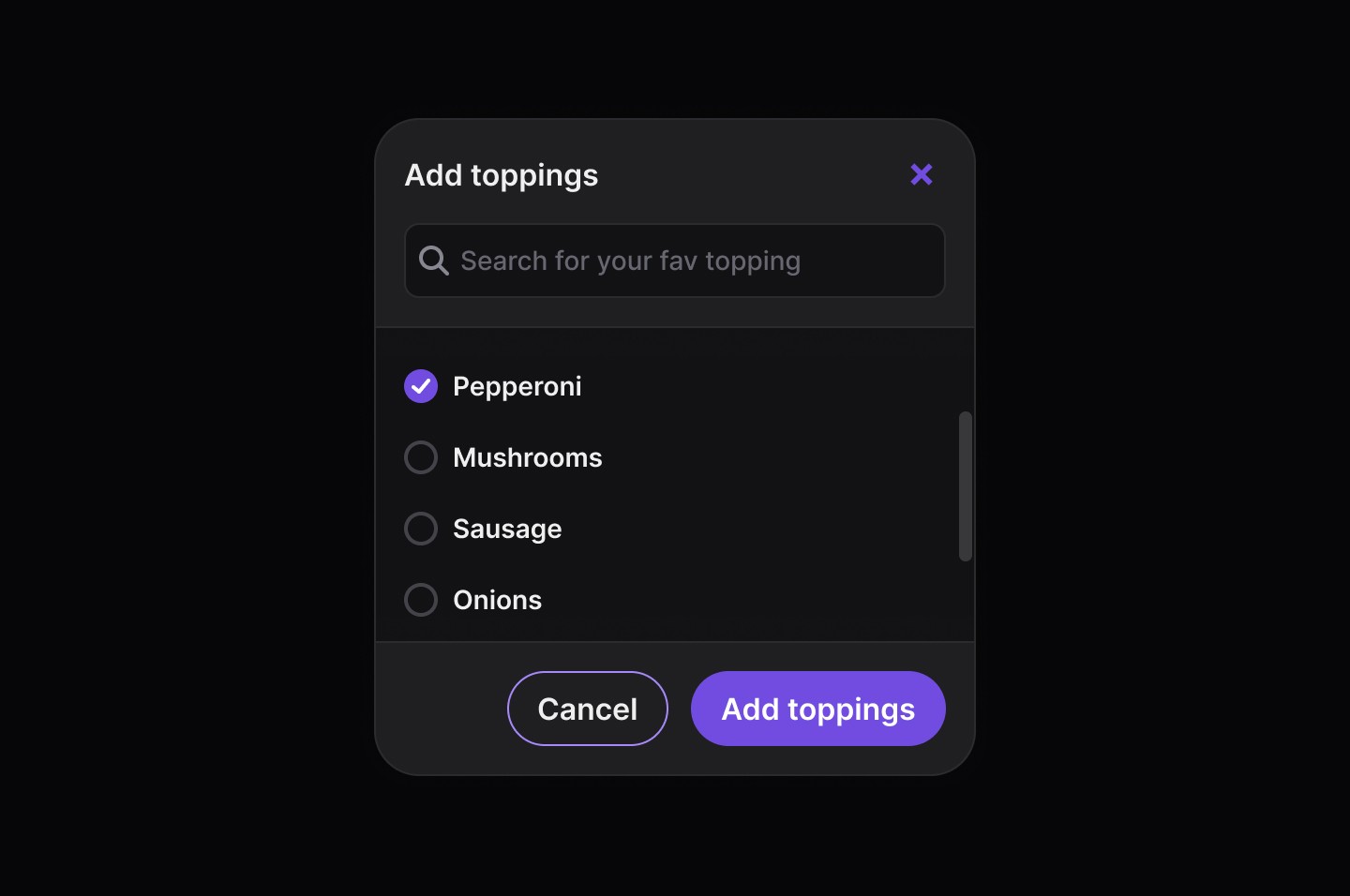
The Card component groups related content and actions i nto a clear, scannable unit. By combining text, media, and interactions within a defined boundary, cards create hierarchy and focus, making information easier to browse and engage with across layouts and devices.
AA
WCAG 2.1 accessibility compliant
Card
Live
The Card component groups related content and actions i nto a clear, scannable unit. By combining text, media, and interactions within a defined boundary, cards create hierarchy and focus, making information easier to browse and engage with across layouts and devices.
AA
WCAG 2.1 accessibility compliant
Card
The Card component groups related content and actions i nto a clear, scannable unit. By combining text, media, and interactions within a defined boundary, cards create hierarchy and focus, making information easier to browse and engage with across layouts and devices.
Live in Storybook

Live in Storybook
Live in Storybook
Figma Designs

Figma Designs
Figma Designs
When to use | When not to use |
|---|---|
✅ Use cards to group content and actions around a single topic. | ⛔️ Avoid nesting cards within other cards, use a divider instead to separate sections. |
✅ Wrap forms, such as a login form, inside a card for clarity. | ⛔️ Don’t use cards for drawing strong attention; they aren’t meant for alerts or highlights. |
✅ Always include a header when placing a Table component inside a card. | ⛔️ Don’t rely on cards to communicate important changes or conditions in the interface. |
Anatomy
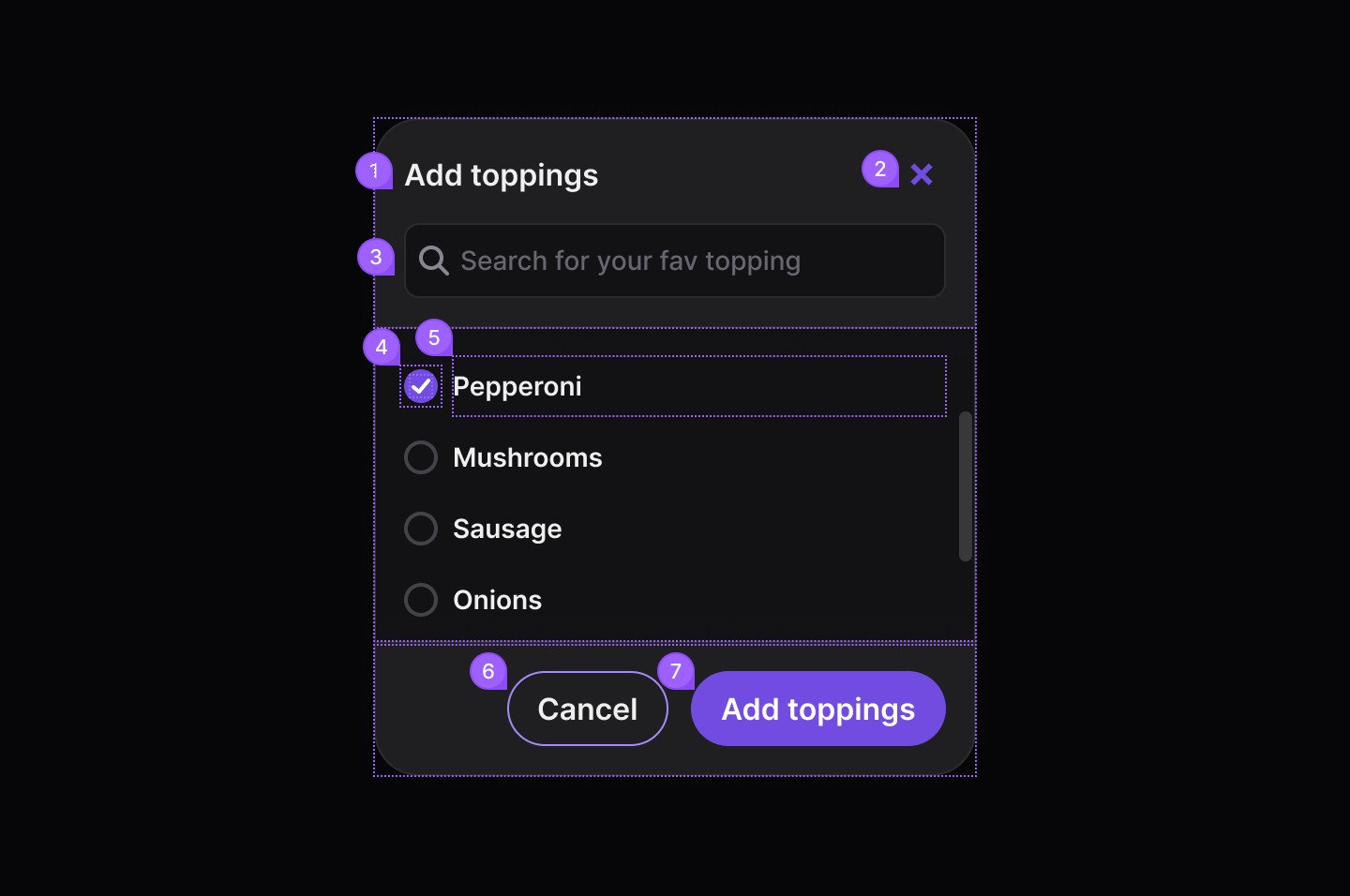
Element | Description |
|---|---|
| Card component title text |
| Tertiary close button |
| Search input |
| Checkbox component |
| Text |
| Secondary button |
| Primary button |
Spacing
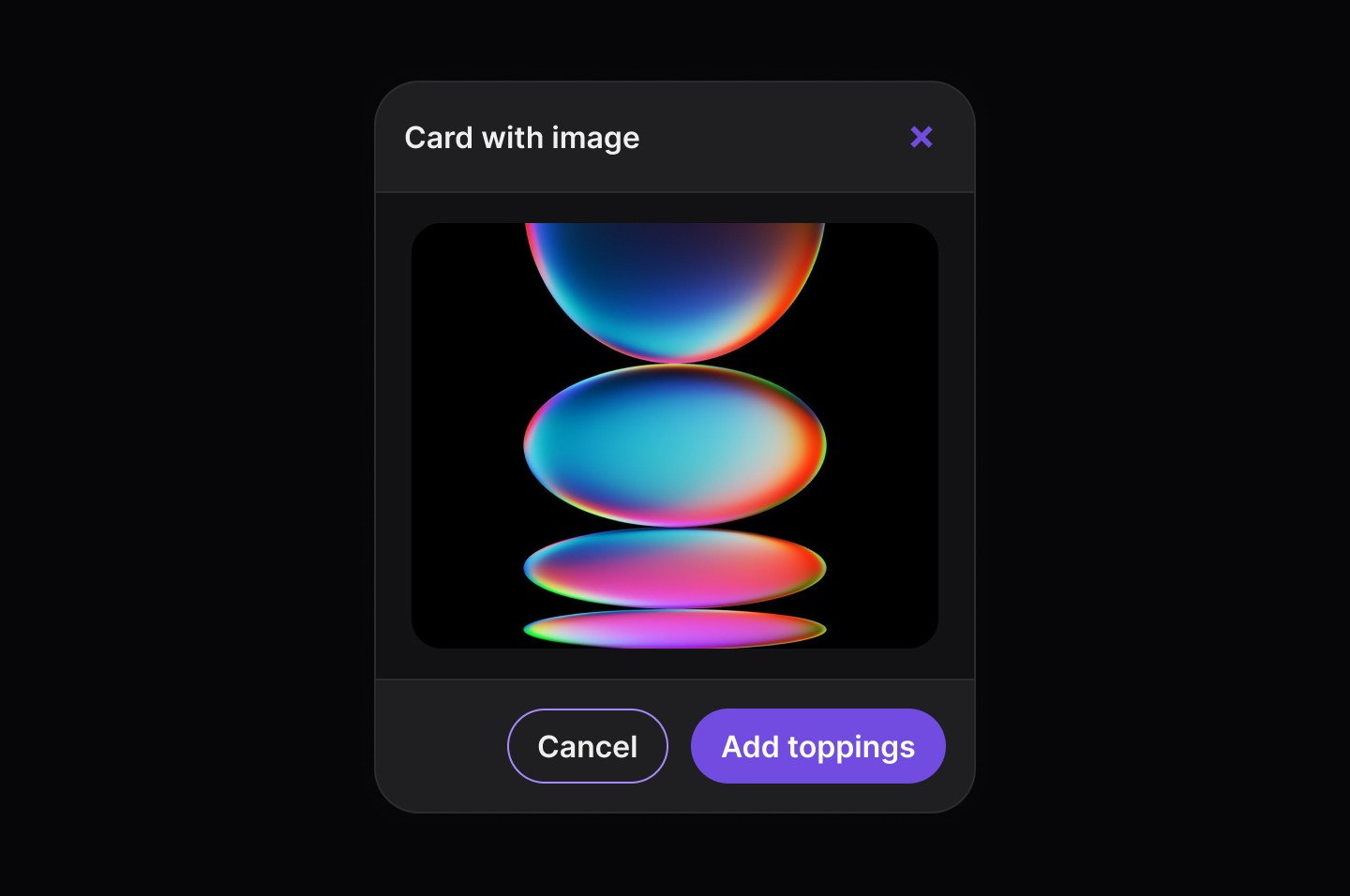
Card With Image
When to use | When not to use |
|---|---|
✅ Use cards to group content and actions around a single topic. | ⛔️ Avoid nesting cards within other cards, use a divider instead to separate sections. |
✅ Wrap forms, such as a login form, inside a card for clarity. | ⛔️ Don’t use cards for drawing strong attention; they aren’t meant for alerts or highlights. |
✅ Always include a header when placing a Table component inside a card. | ⛔️ Don’t rely on cards to communicate important changes or conditions in the interface. |
Anatomy
Element | Description |
|---|---|
| Card component title text |
| Tertiary close button |
| Search input |
| Checkbox component |
| Text |
| Secondary button |
| Primary button |
Spacing
Card With Image
When to use | When not to use |
|---|---|
✅ Use cards to group content and actions around a single topic. | ⛔️ Avoid nesting cards within other cards, use a divider instead to separate sections. |
✅ Wrap forms, such as a login form, inside a card for clarity. | ⛔️ Don’t use cards for drawing strong attention; they aren’t meant for alerts or highlights. |
✅ Always include a header when placing a Table component inside a card. | ⛔️ Don’t rely on cards to communicate important changes or conditions in the interface. |
Anatomy
Element | Description |
|---|---|
| Card component title text |
| Tertiary close button |
| Search input |
| Checkbox component |
| Text |
| Secondary button |
| Primary button |
Spacing
Card With Image
Continue reading
Get in touch
Got a project in mind? Let’s chat. I’m always keen to hear about new ideas, collaborations, or challenges you’re looking to solve. Drop me a message and we can explore how to bring your vision to life together.
Get in touch
Got a project in mind? Let’s chat. I’m always keen to hear about new ideas, collaborations, or challenges you’re looking to solve. Drop me a message and we can explore how to bring your vision to life together.
Get in touch
Got a project in mind? Let’s chat. I’m always keen to hear about new ideas, collaborations, or challenges you’re looking to solve. Drop me a message and we can explore how to bring your vision to life together.